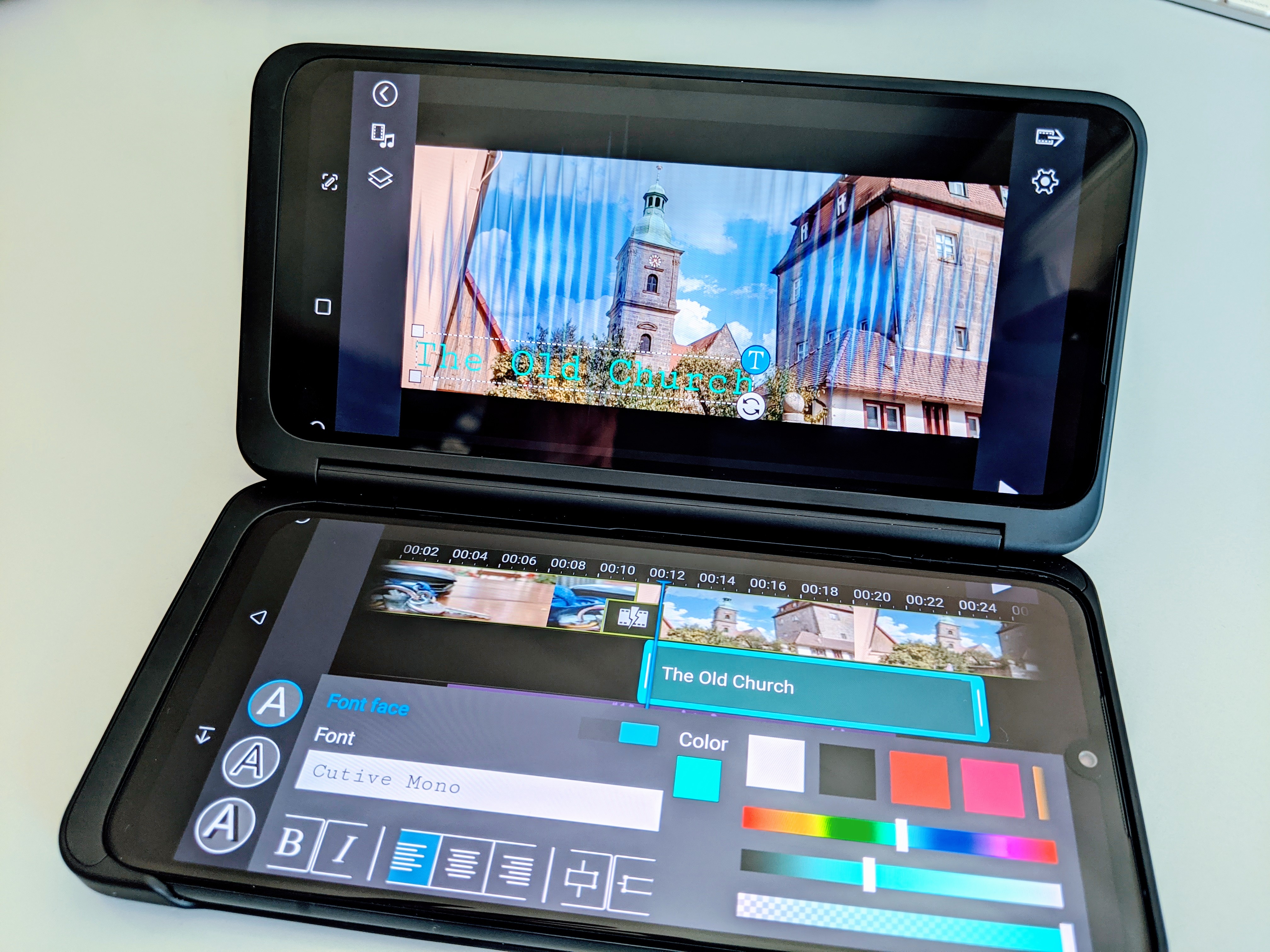
Let’s be honest: Despite the fact that phone screens have become increasingly bigger over the last years, they are still rather small for doing some serious video editing on the go. No doubt, you CAN do video editing on your phone and achieve great results, particularly if you are using an app with a touch-friendly UI like KineMaster that was brilliantly designed for phone screens. But I’m confident just about every mobile veditor would appreciate some more screen real estate. Sure, you can use a tablet for editing but tablets aren’t great devices for shooting and if you want to do everything on one device pretty much everyone would choose a phone, right?
Ever since I started this blog, I wanted to write an article about my favorite video editing apps on Android but I could never decide on how to go about it, whether to write a separate in-depth article on each of them, a really long one on all of them or a more condensed one without too much detail or workflow explanations, more of an overview. So I recently figured there’s been enough pondering on this subject and I should just start writing something. The very basic common ground for all these mobile video editing apps mentioned here is that they allow you to combine multiple video clips into a timeline and arrange them in a desired order. Some might question the validity of editing video on such a relatively small screen as that of a smartphone (even though screen sizes have increased drastically over the last years). While it’s true that there definitely are limitations and I probably wouldn’t consider editing a feature-length movie that way, there’s also an undeniable fascination about the fact that it’s actually doable and can also be a lot of fun. I would even dare to say that it’s a charming throwback to the days before digital non-linear editing when the process of cutting and splicing actual film strips had a very tactile nature to it. But let’s get started…
The fact that nowadays pretty much everyone owns a smartphone and shoots video with it has brought a gigantic wave of shaky handheld footage along. While some folks are actually allergic to any kind of shakiness in video, I personally think that depending on the amount and context it can work just fine – but definitely not all the time and under any circumstances. So there is a need to stabilize shaky handheld footage. Now the best thing to get smooth n’ stable footage is to avoid shakiness in the first place while shooting. While there are techniques for shooting (more) stable video handheld, the most common thing would be putting the phone on a tripod (using any kind of rig or clamp for mounting it). But maybe you want to move around a bit? More and more smartphones do have internal stabilization, be it on the hardware side with OIS (optical image stabilization) or on the software side with EIS (electronic image stabilzation). Over the last years there has also been a considerable and increasingly affordable influx of (motorized) gimbals that allow smooth camera movements. But let’s be honest: Unless you’re going to a planned shoot, you probably won’t carry around a tripod or gimbal (if you have one) – as compact as they have become over time, they are still too big and clunky to just put in your pocket. So it’s likely that you will find yourself in situations where you shoot video handheld and want to smooth out some distracting jitter afterwards. While most desktop video editing software has a built-in stabilizer function these days, things don’t look quite as bright on mobile but there are still a few (good) options.
The Xiaomi Mi A1 is Xiaomi’s first “officially” internationally available phone.
Xiaomi has been a really big name in China’s smartphone market for years, promising high-end specs and good build quality for a budget price tag – but only at the end of last year did they officially enter the global scene with the Mi A1. The Mi A1 is basically a revamped Mi 5X running stock Android software instead of Xiaomi’s custom Mi UI. It’s also part of Google’s Android One program which means it runs a ‚clean‘ Google version of Android that gets quicker and more frequent updates directly from Google. For a very budget-friendly 180€ (current online price in Europe) you get a slick looking phone with dual rear cameras, featuring a 2x optical zoom telephoto lens alongside the primary camera. Sounds like an incredible deal? Here are some thoughts about the Mi A1 regarding its use as a tool for media production, specifically video.
Cameras that can produce spherical 360 video are becoming more affordable and widespread these days, slowly making their way into the mainstream. The recently released Android-smartphone-specific Insta360 Air clip-on camera has joined a bunch of other entry level 360 cams like the Ricoh Theta S, the LG 360 Cam and Samsung’s Gear 360 to make this new exciting world of immersive visuals available for the crowd while more avantgardistic 360 aficionados are getting their fix with a GoPro-Omni rig or Nokia’s 40000 € Ozo. High-end 360 video solutions are still meant to be post-produced on a desktop machine but the consumer variants are closely tied to mobile devices already. The Insta360 Air connects to the microUSB or USB-C port of an Android phone and records the footage directly to the device. The other three aforementioned entry-level 360 cams can – unlike the Insta360 Air – also be used as a standalone camera without a (physical) connection to the phone but they all have companion apps that will help you to get the best shooting experience and control via a wireless connection. Furthermore, they make it very easy to directly transfer the footage from the camera to the phone for instant sharing or editing. YouTube and Facebook are the two big social networks that already support interactive 360 videos natively, Vimeo has recently added this feature as well. But before sharing, it’s very likely you want to perform some edits on your footage or combine a couple of clips to tell a story. This brings us to the topic of how you can edit 360 video directly on your Android device.




 smartfilming
Recent Comments